Installing .net 3.5
Some older applications on Windows 10 may prompt you to install .NET Framework 3.5. Windows 11 includes .NET Framework 4.8 by default, though certain programs still rely on version 3.5 to work correctly.
With Internet:
- Click on the Start Menu and open the Control Panel.
- Switch the Control Panel view to Category, and click on Programs.
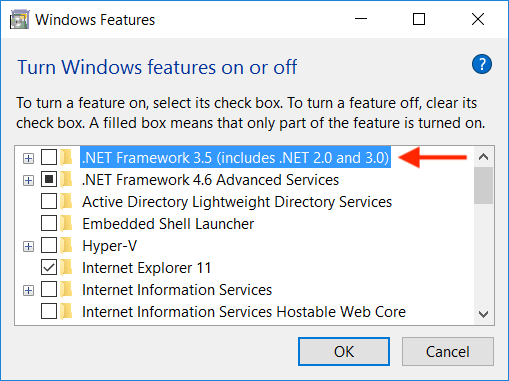
- Under Programs and Features, click on Turn Windows Features on or off.
- Click the box next to .NET Framework 3.5 (includes .NET 2.0 and 3.0), and click OK.
- Windows will download the necessary files, and prompt for a restart. Continue with Restart now.
Without Internet (Using a Disk or ISO):
If you are at a location with no internet (or if the installation fails with an error), you will need the Windows 10 installation media:
- Mount the ISO, or insert the CD: If you have a Windows 10 ISO file, right-click it and select Mount. Note the drive letter (e.g.,
D:). - Open Command Prompt as Admin: Right-click the Start button and select Command Prompt (Admin) or Windows PowerShell (Admin).
- Run the DISM Command: Copy and paste the following command, replacing
D:with your actual drive letter:
DISM /Online /Enable-Feature /FeatureName:NetFx3 /All /LimitAccess /Source:D:\sources\sxs
- Wait for the installation to finish, and restart.
Note:
/LimitAccesstells Windows not to try downloading from the internet./Sourcepoints exactly to where the 'cab files' are located on the disk.
DISM stands for Deployment Image Servicing and Management.
Summary:
- Online: No disk needed; Windows downloads it.
- Offline: Disk (or ISO) is required to provide the source files.